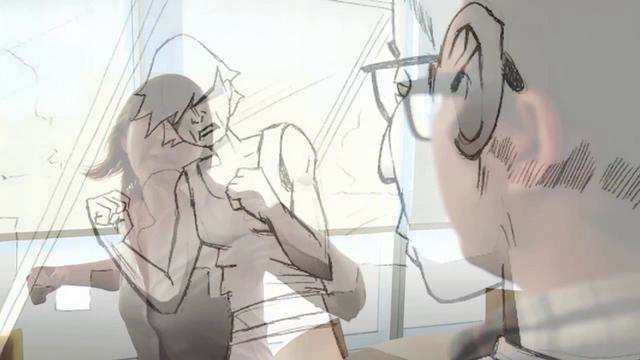
I’m here to talk to you about the importance of storyboarding. Storyboards are tiny drawings that show each scene of your film creating a blueprint for your movie. They can help you keep your budget down by knowing exactly what you need to shoot and help translate to your vision to the rest of your crew. In the following video you will see some of the basic tips and rules for storyboarding. You’ll learn ways to draw motion, number your boards, and how to frame your actors.
You don’t need any fancy art degree or high end computer to be a storyboarder. All you need is a pencil, piece of paper, and your imagination. There all kinds of storyboards, from simple stick figures to fully colored drawings cut to music. The important thing is that they both make a clear and concise plan for what you need to shoot or animate.
Check out this great video by Carleton Torpin:
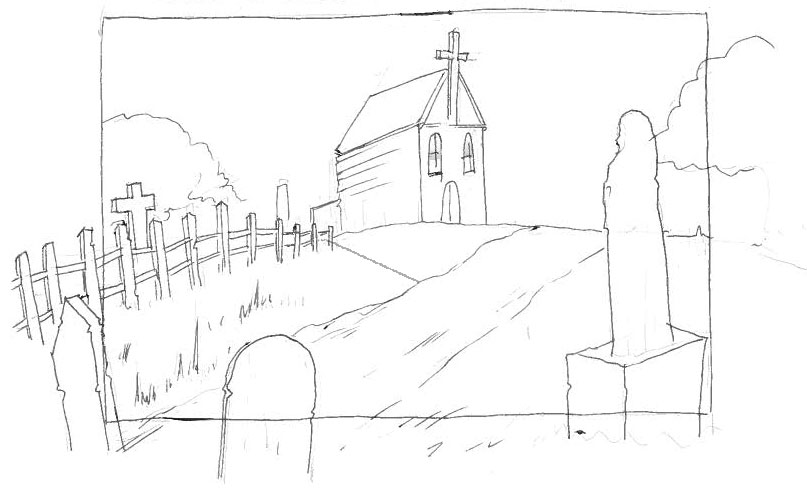
Now let’s start with the basics: The size of your boards can vary, depending on what you are shooting. If you know that your video is going to be in a wide screen format draw your board according to that size. The boards I drew below are pretty loose but it gets across what the shot will be like but is vague enough for interpretation. It’s important when drawing your boards to number each scene. It’s a good idea to number your shots so you don’t get confused later. When a shot is one motion that requires multiple boards, create a secondary numbering system. For example if your first shot requires three boards of motion label them 1a, 1b, and 1c. Ex. 1 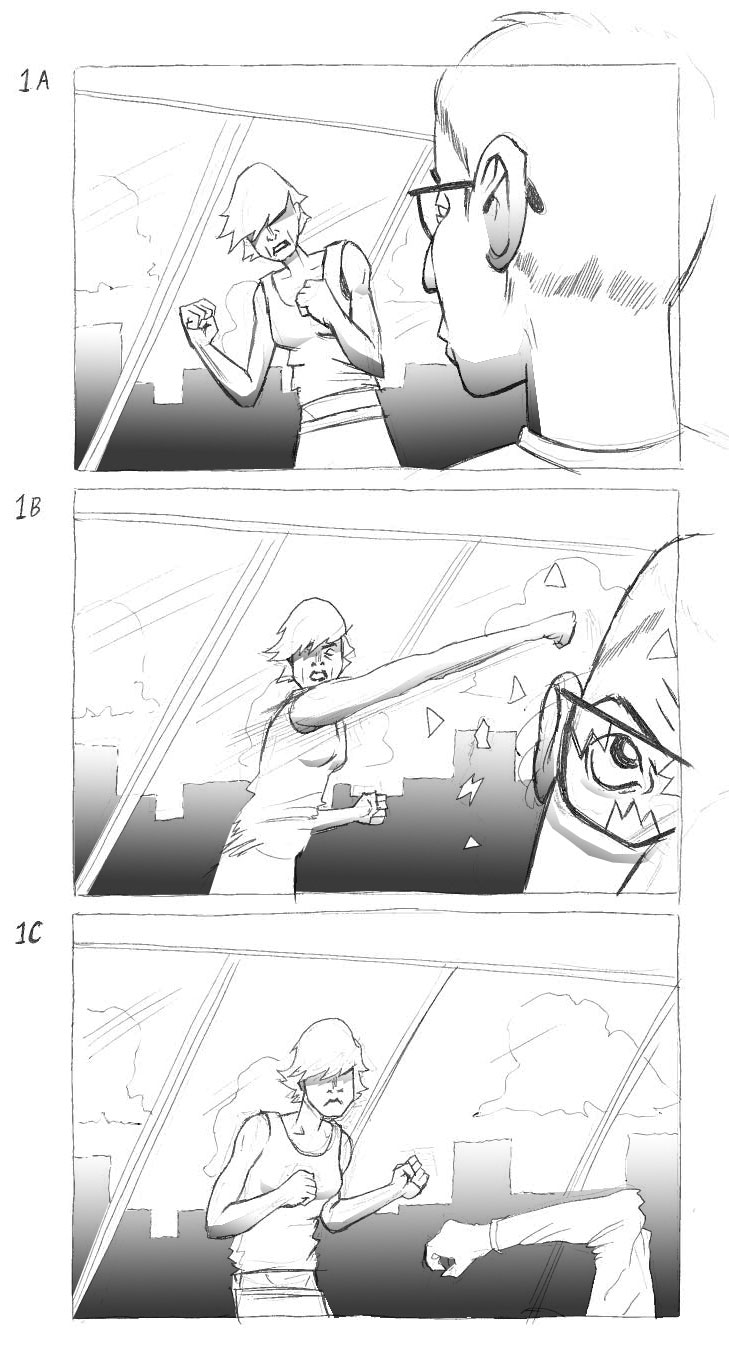 (Images courtesy of Ian Higginbotham) Make sure you draw your actors in frame and have a clear and consistent background. Feel free to draw outside of your frame as well if you are feeling constricted. Look at the example below, you’ll notice that the scene extends outside the frame of the storyboard. This is a good way to not make your image feel cluttered and help loosen up your drawing. Ex. 2
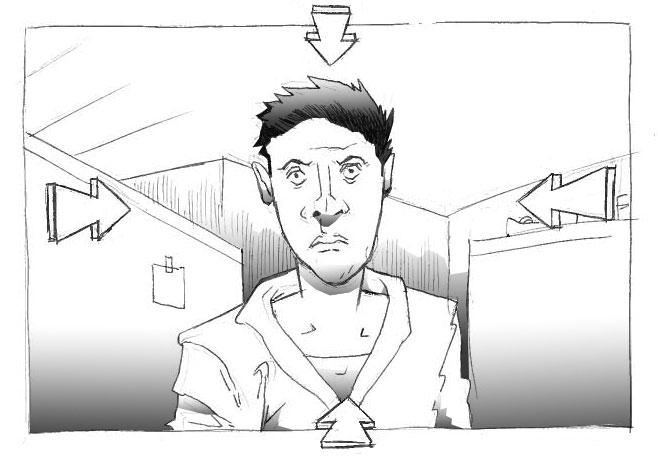
  When showing a camera movement there are a number of different ways to draw motion. Ex 1. Arrows- these are a very standard way to communicate which way you want your camera to move. Just follow the arrow!
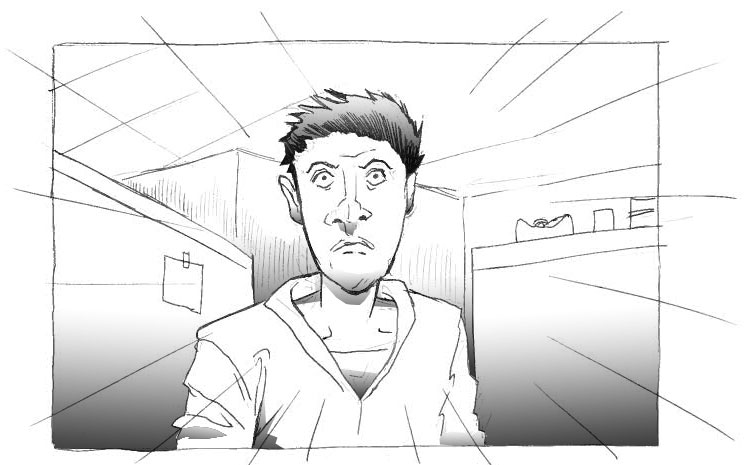
  Ex 2. Motion Lines- motion lines are little more subtle but can emphasize velocity towards an object.
  Ex 3. Multiple Frames- this can be a great way to present a slow creeping zoom, or a fast paced one depending on what you are going for.
 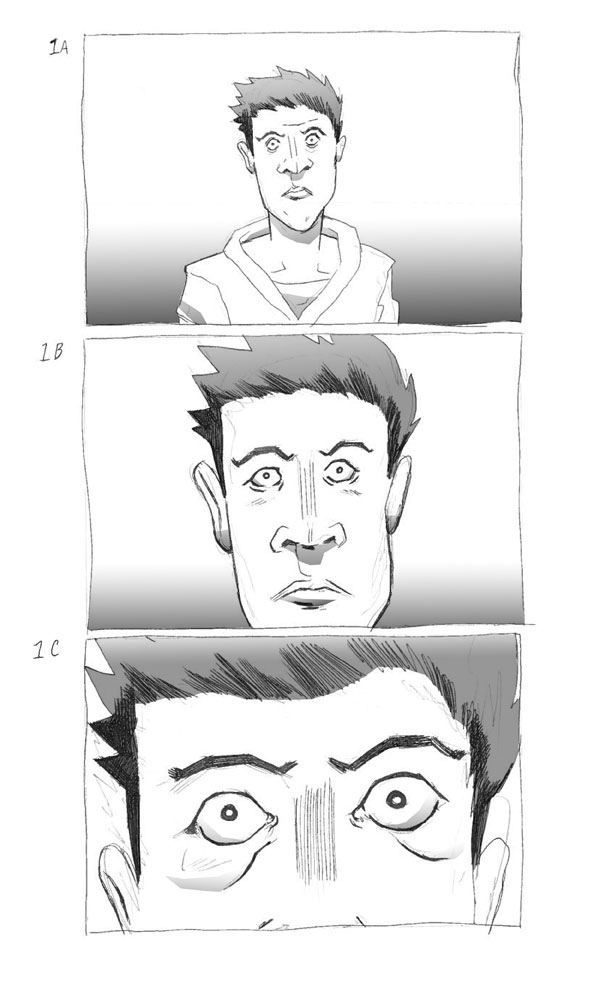 You can even try combining all three methods to create your own way of showing motion. Challenge: Draw out your storyboards and shoot according to what you have boarded. When you’re finished, upload what you have!
Once your storyboards have become video, you can view content in the Vimeo video player and use Vimeo’s powerful editing suite for tasks such as cutting video, combining footage, video compression, and making GIFs.